Guides
Does the timing actually line up? A controlled two-band test with a cup of water proves the oven is the cause, then the fixes in order of effect: band first, distance second, channel last, plus the FDA door and seal checks that make it an oven problem instead. Numbered procedure with a success check.
Double NAT rarely slows browsing. It breaks port forwarding, console NAT type, and remote access. Read the router's WAN address to prove it, tell it apart from carrier-grade NAT, then pick from three fixes compared by what each one switches off. Numbered procedure with a success check.
Changing DNS will not make a slow plan faster. It changes who answers name lookups and what gets filtered. A sourced resolver table (Google, Cloudflare, Cloudflare for Families, Quad9), the official NETGEAR path, and a test that proves the new resolver is answering. Numbered procedure with a success check.
One profile per child, every device assigned, bedtime set, then audit the three silent failures. TP-Link HomeShield paths, the vendor's own free vs paid split, and the private MAC address trap that makes rules apply to nothing. Numbered procedure with a success check.
Connected means the device reached the router, nothing more. Three observable tests (the 169.254 address, the one-device-or-all split, the DNS check) name the broken link, then one fix per link. Numbered procedure with a success check.
Cannot see the network, join rejected, or joined but invisible are three different faults. The printer's own test page names the stage; HP and Canon menu paths, plus the router checklist printers fail on. Numbered procedure with a success check.
The edit takes two minutes; the job is the reconnect order and the audit afterwards. NETGEAR and TP-Link official paths side by side, the rename decision, and the check that the old password now fails.
You cannot punch through masonry, so route around it: dB loss figures with their conflicts shown, nodes on the near side of the wall, and wired backhaul when the wall count is high. Numbered procedure with a success check.
Cable the desk, not the house: 0.3 to 1 ms wired latency against 2 to 10 ms on Wi-Fi with spikes past 50 ms, a per-device decision for the docked laptop, the NAS, calls, and the printer that earns nothing.
Full bars can still be bad Wi-Fi. RSSI measures strength, not clarity. Reconcile the conflicting charts against per-use targets, then run a same-device walk-test of your own house.
A game that disconnects and a game that stutters are different faults. Tell them apart with a latency-under-load test, then fix in order: wire the machine, then SQM, then placement.
Headline rates say 2 Gbps vs 2.5 Gbps. Measured results say 80 to 180 Mbps vs 850 to 1,200 Mbps. Audit your coax and circuits first, then buy the wiring your house already supports.
Five years old is not a replace date. Support life is: check end of security updates from the model's launch date, run a fault-isolation check, and only then decide.
Free geometry tests first, then the four options (extender, mesh, powerline, wired outdoor AP) matched to attached vs. detached reality.
Calls die on jitter, not megabits, the five-minute wired test that splits Wi-Fi faults from ISP faults, then fixes in diagnostic order.
Phones fine, gadgets failing is a compatibility signature: diagnose by failure stage, then build one permanent 2.4 GHz WPA2 IoT network instead of weakening the main one. Numbered procedure with a success check.
Provider peak, household peak, or neighbour peak, four speed tests (wired and Wi-Fi, midday and evening) name which clock is yours before any fix is applied.
Troubleshooting
Measure in three places, walk the signal path, reposition and re-aim the antennas, assign the right band, then, and only then, add coverage hardware halfway.
Troubleshooting
A numbered procedure with exact settings paths: forget and rejoin, driver updates, power-saving off, and the test that proves it worked.
Start here
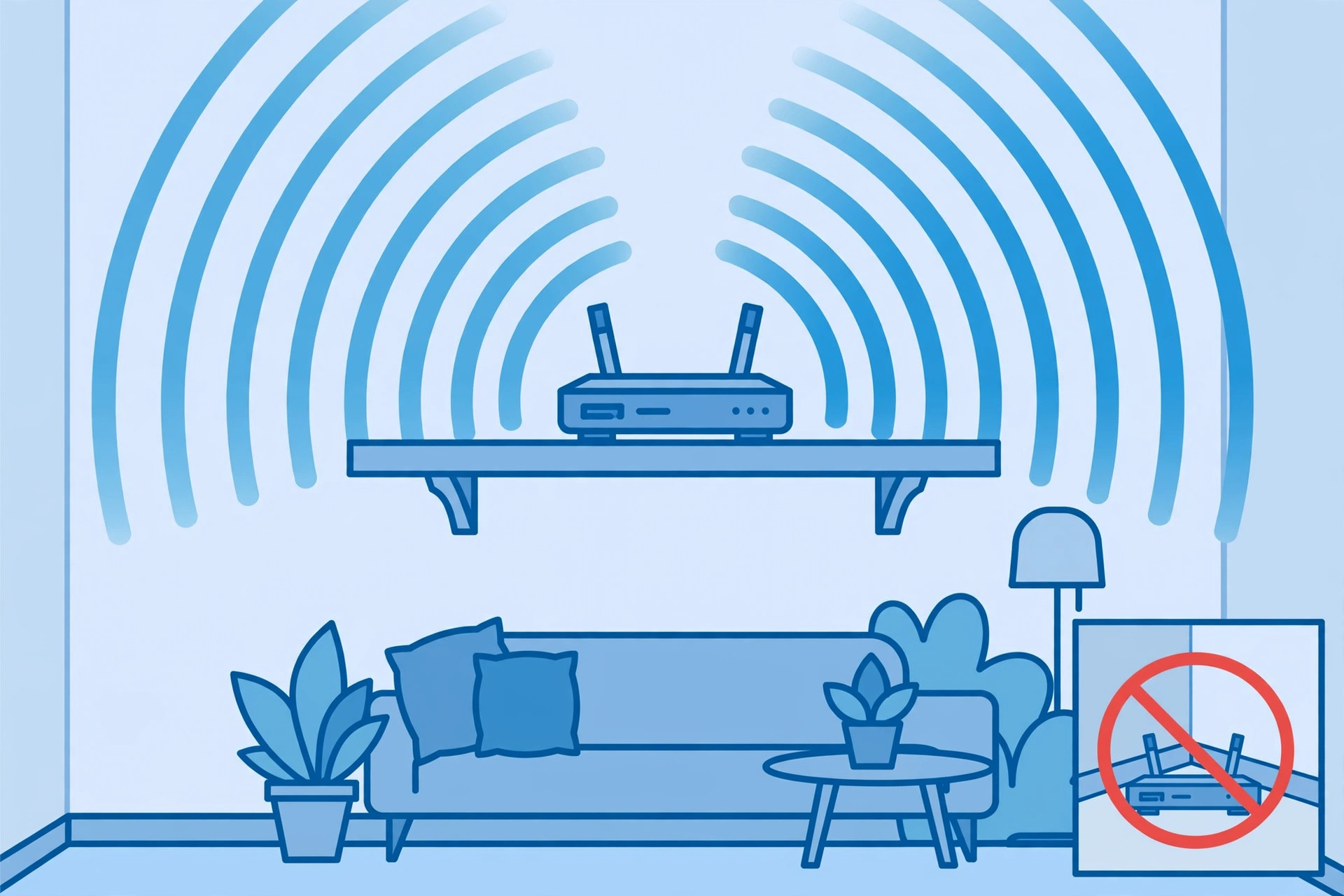
The single biggest free Wi-Fi upgrade: central, elevated, and clear of the things that quietly kill signal.
Troubleshooting
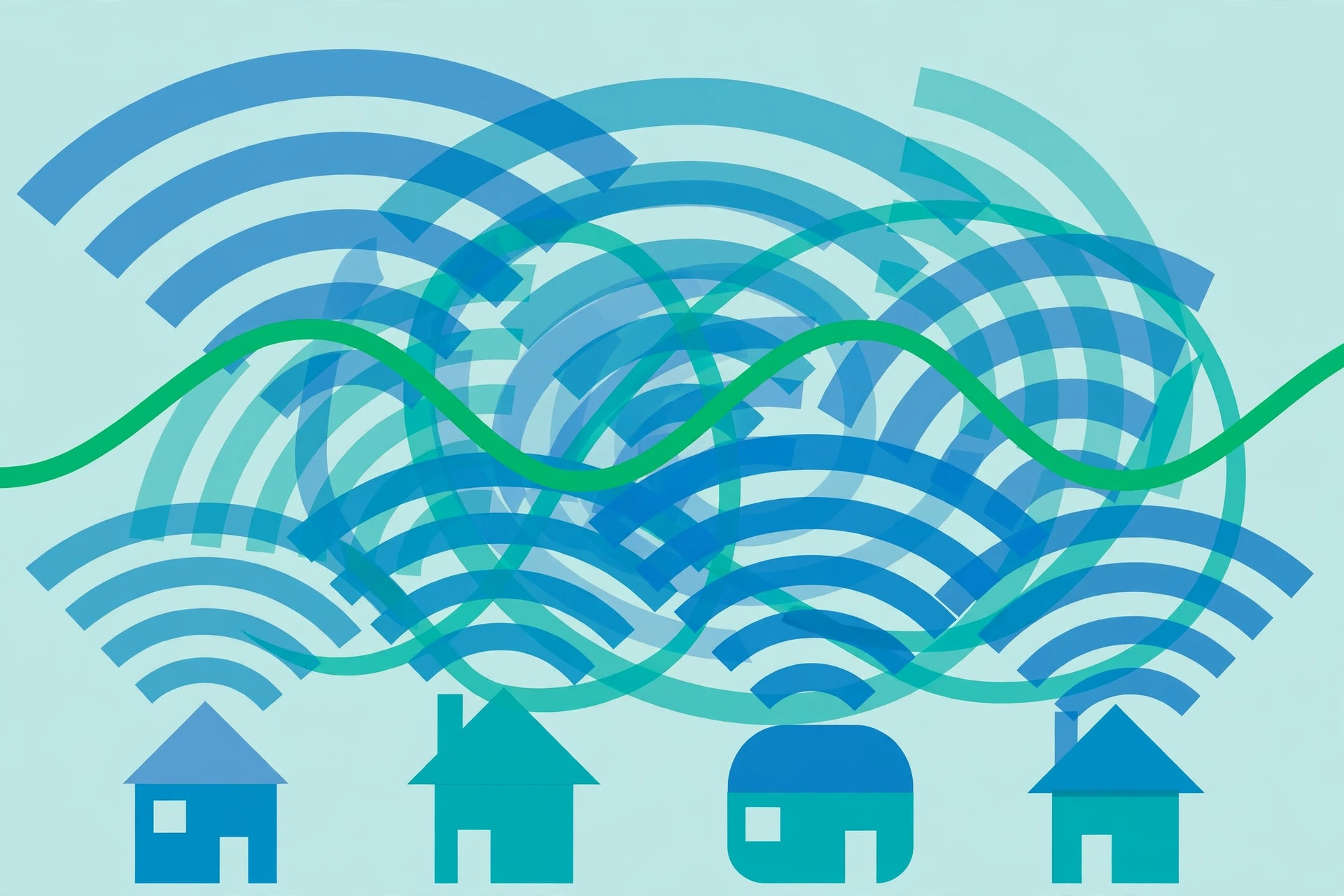
Why the 2.4 GHz band is a crowded hallway, the only three channels that don't overlap, and how to pick a quiet one.
Buying decisions
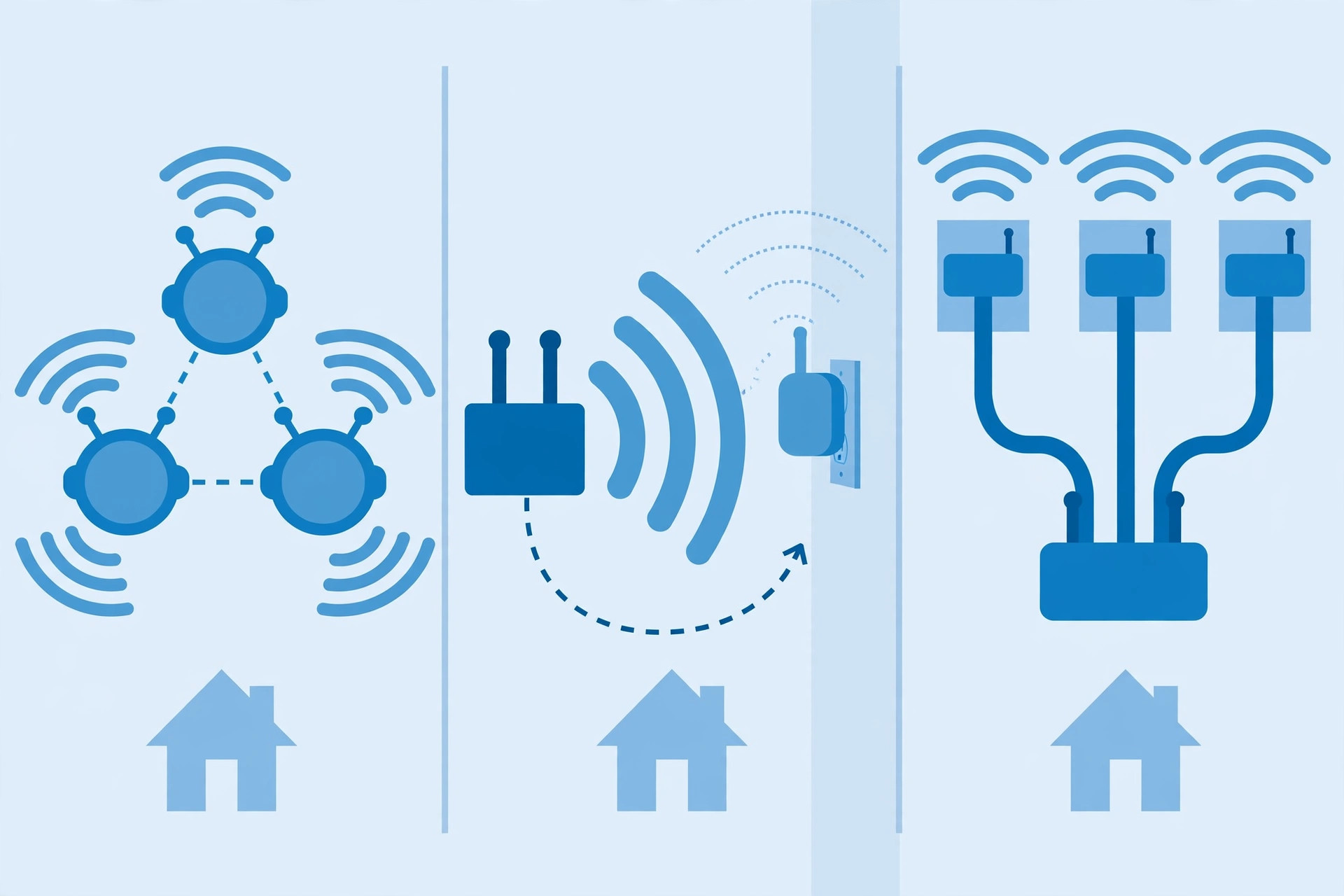
The three ways to kill a dead zone, what each one actually costs you in speed, and which fits your home.
Troubleshooting
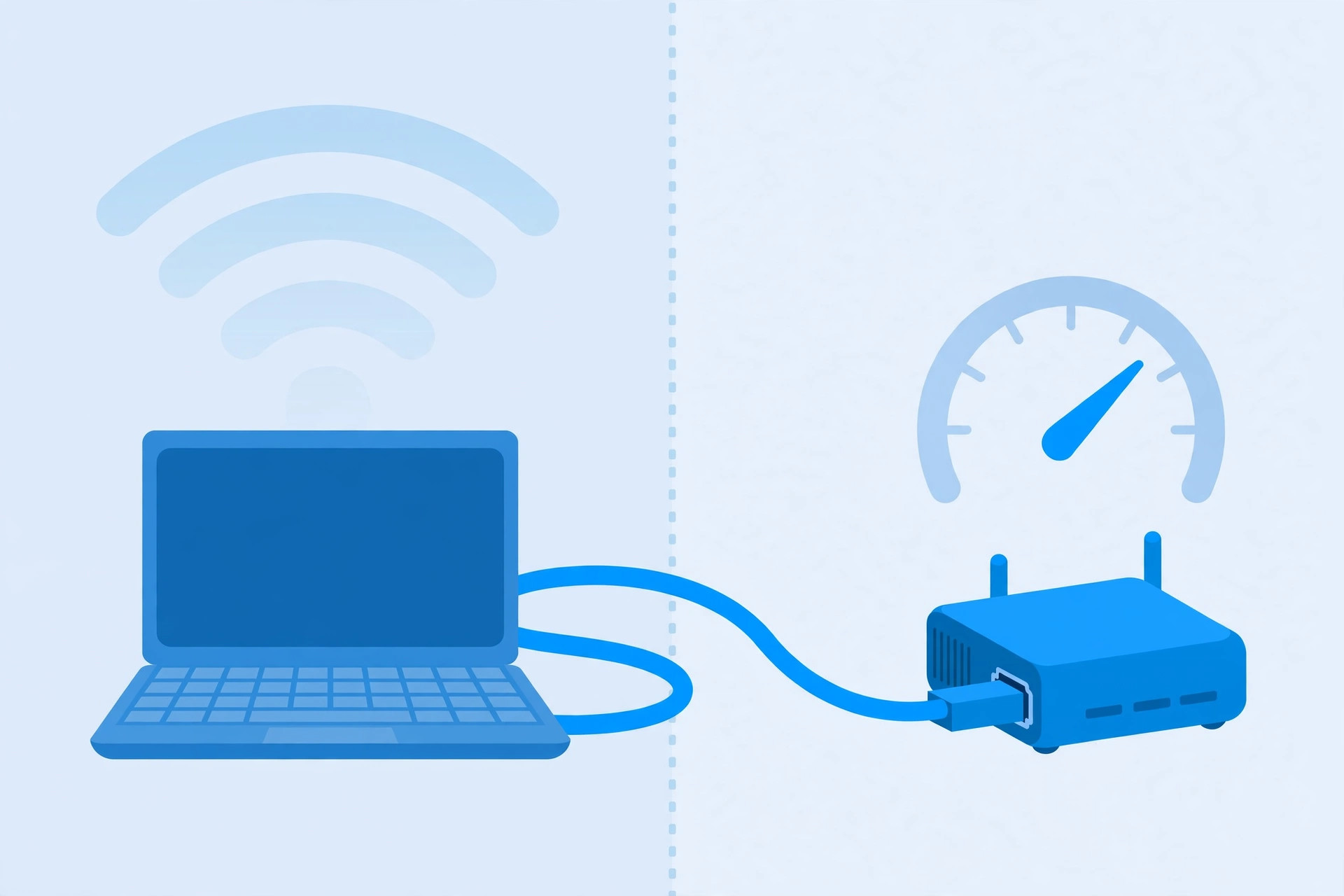
Is it your Wi-Fi or your internet? The wired test that answers it in two minutes, plus what to check before you call.
Concepts
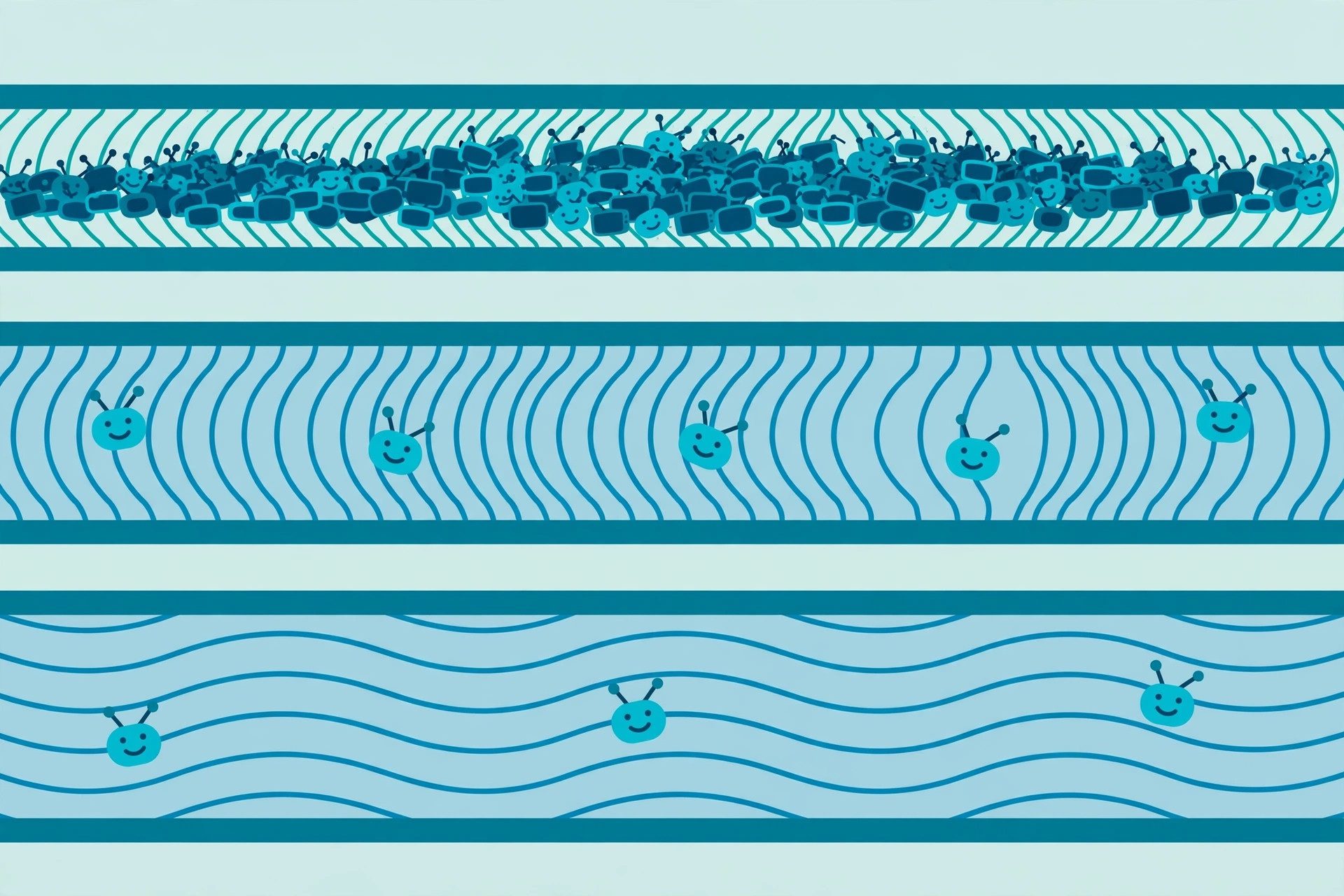
What the generation names actually mean, what 6 GHz changes (and doesn't), and whether you should care yet.
Troubleshooting
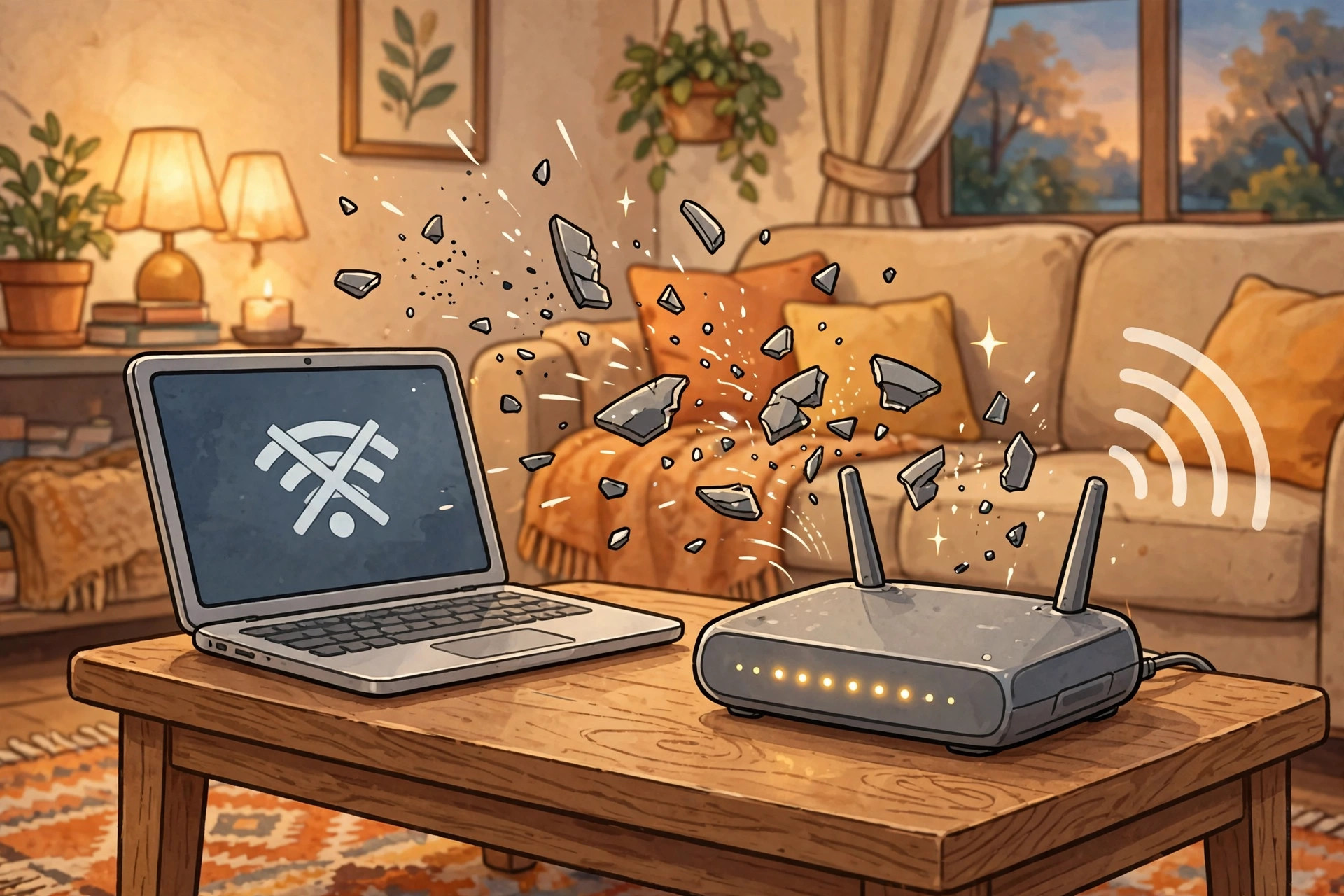
Drops are a pattern, not a mystery: one device or all, one room or everywhere, random or on the hour, each pattern has its own fix.
Concepts
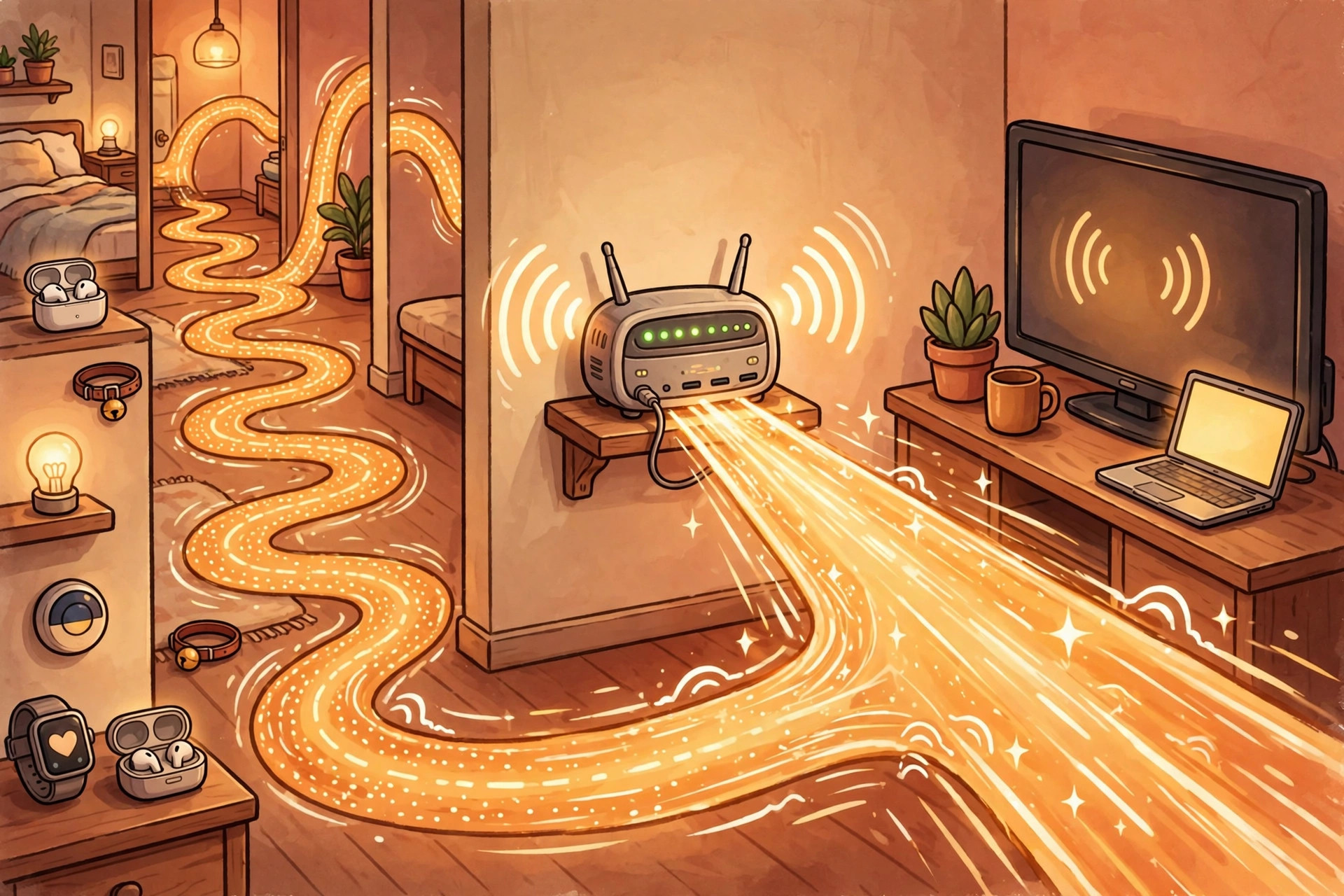
Neither band is "better", each device has a right answer. A per-device assignment table, plus the two exceptions that flip the rule.
Concepts
Add up your own busiest hour from official per-activity figures, check upload separately, and find whether your bottleneck is the plan, the router, or the room.
Troubleshooting
Back up first, verify the exact model and hardware version, choose auto or manual update, and confirm the new version actually stuck.

Setup
Give visitors internet without giving them your network: isolation on, the right devices assigned, and a two-minute test that proves it works.

Troubleshooting
Measure at the TV first, compare with what a stream actually needs, then fix in order, one change at a time.
Measure in dBm first, then climb the ladder: router move, 2.4 GHz, mesh placed outside the dead zone, and the wired access point that ends it. Numbered procedure with a success check.
The admin password is not the Wi-Fi password: a numbered hardening procedure in an order that won't lock you out, sourced from FTC- and CISA-aligned checklists.