Choosing between 2.4 GHz and 5 GHz bands
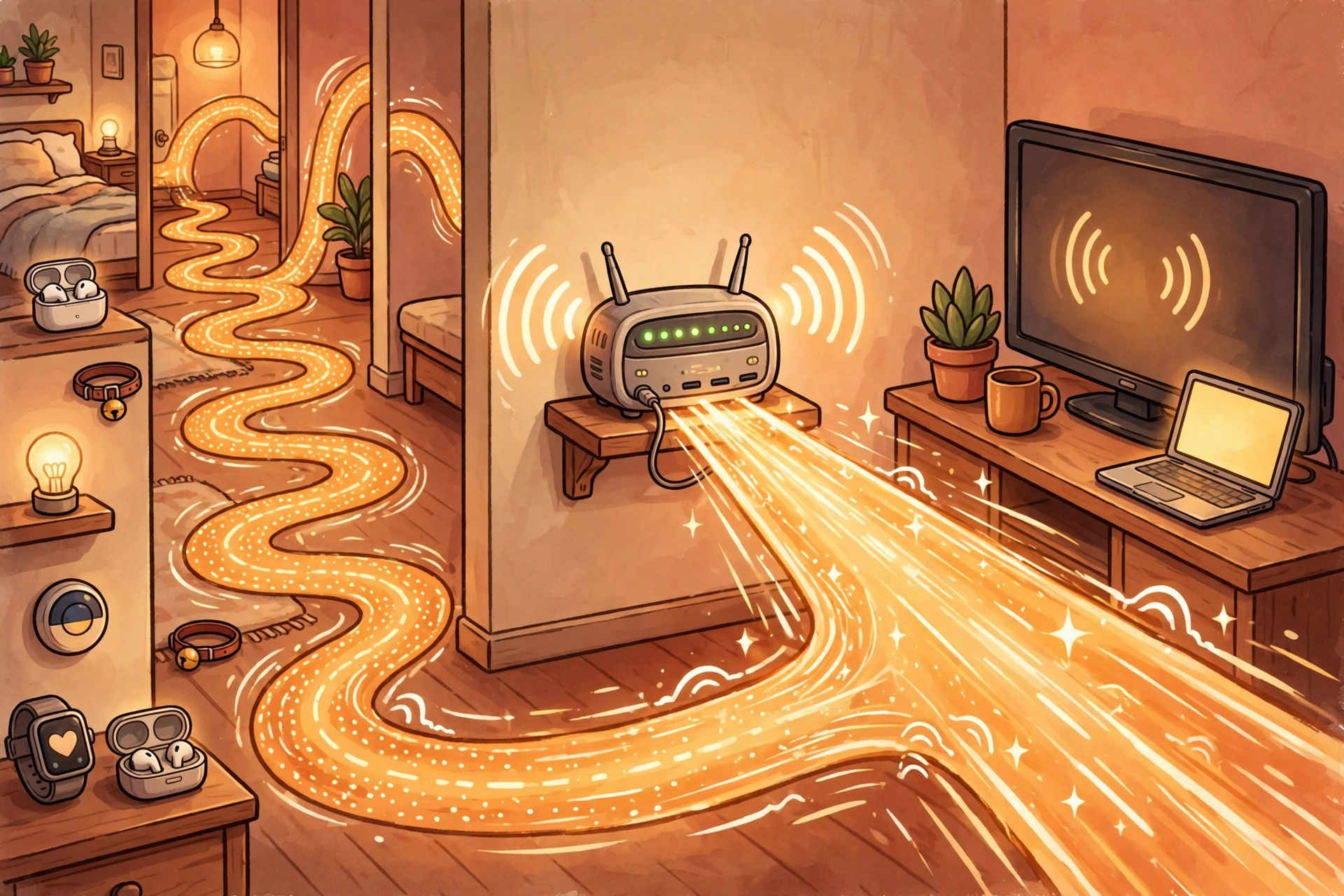
Most routers broadcast two networks that look like twins: your name, and your name with a "5G" on the end. The standard advice — 2.4 GHz for range, 5 GHz for speed — is true but useless at the moment you are actually holding a phone, a TV, or a smart plug and wondering which one to join. This guide turns the trade-off into assignments: which band each device in a typical house belongs on, the two exceptions that flip the rule, and how to check what a device really connected to when the router hides the choice.
The one-sentence version
Put anything that moves data hard and sits near the router on 5 GHz; put anything far away, behind walls, or too simple to care about speed on 2.4 GHz — and leave both bands switched on, always. Intel's own summary of the bands is the cleanest statement of the trade-off: the lower the frequency, the lower the data transfer speed but the longer the range. Everything below is that sentence, applied device by device.
What actually differs: verified side by side
| Question | 2.4 GHz | 5 GHz |
|---|---|---|
| Speed | Lower — fine for browsing, music, and smart devices | Higher — built for streaming, gaming, and video calls |
| Range | Longer; the best-effort choice for devices far from the router | Shorter; best in the same room or one room away |
| Walls | Less affected by walls and obstacles | Signal quality drops more through solid walls |
| Crowding | More interference — it is the band every older device and most neighbours also use | Less crowding and less interference |
| Compatibility | Works with nearly everything, including most smart-home gear | Needs a device that supports it |
One honest complication, because the usual claim deserves a check: the "2.4 GHz always reaches farther" line is a rule of thumb, not a law. A study commissioned by Australia's ACMA and carried out by Enex tested 43 devices in small-office conditions and, as IT Pro reported, did not find the expected 2.4 GHz range advantage in practice — 5 GHz delivered considerably greater throughput in their tests. Walls, building materials, and the specific router matter as much as the band printed on the box. Treat the table as the starting point, then verify with your own rooms using the check at the end of this guide.
Assign bands per device, not per house
The question is never "which band should the house use?" — a dual-band router broadcasts both at the same time, and each device picks its own. Assign by what the device does and where it lives:
| Device | Band | Why |
|---|---|---|
| TV or streaming box near the router | 5 GHz | Streaming is the heaviest steady load in most homes, and 5 GHz is the band Intel points to for it |
| Work laptop on video calls | 5 GHz | Video calls want speed and low interference, and laptops usually sit within a room or two |
| Game console | 5 GHz | Comparisons consistently find gaming and game streaming improve on 5 GHz when the console is near the router; wire it if you can |
| Phones and tablets | Either — let them roam | They move room to room; 5 GHz near the router, 2.4 GHz at the far end of the house |
| Smart plugs, bulbs, thermostat, door lock | 2.4 GHz — no choice | Most smart-home devices are built for 2.4 GHz only |
| Security cameras | 2.4 GHz, usually | Cameras tend to live at the edges of the house — garages, porches — where range wins |
| Printer, older laptop, anything pre-dual-band | 2.4 GHz | If it cannot see the 5 GHz network at all, it is 2.4-only hardware |
| Desktop in a far bedroom | Test both | This is the exception case below — distance can reverse the usual answer |
The two exceptions that flip the usual advice
Exception 1: a weak 5 GHz signal loses to a strong 2.4 GHz one. Band speed figures assume a healthy signal. Two or three rooms away, a 5 GHz connection gasping at one bar will stutter and drop where a solid 2.4 GHz connection just works — EarthLink's band guide makes the same point: a strong 2.4 GHz connection will outperform a weak 5 GHz one. If a far-room device misbehaves on 5 GHz, moving it to 2.4 GHz is not a downgrade; it is the fix.
Exception 2: on 2.4 GHz, you share the air with more than Wi-Fi. Bluetooth lives in the same 2.4 GHz spectrum. In an Intel Community support case, one laptop's 2.4 GHz connection slowed and dropped whenever Bluetooth was active on the same machine, while its 5 GHz connection stayed normal — switching Bluetooth off restored the 2.4 GHz link. If a device drops on 2.4 GHz while a Bluetooth headset, mouse, or speaker is in use, moving that device to 5 GHz sidesteps the fight entirely.
When both bands share one name (band steering)
Many current routers show a single network name and steer each device to a band automatically. That convenience has two consequences. First, you cannot always force a device onto a band — the router decides, which can produce exactly the far-room trap above. Second, 2.4-only smart devices occasionally struggle to join a combined network during setup, because the phone doing the setup is sitting on 5 GHz. The practical workaround in both cases is the same: most routers let you split the bands into two names in the wireless settings (often a "Smart Connect" or "band steering" toggle to switch off). Split them, name them clearly — HomeWiFi and HomeWiFi-5G — assign devices using the table, and you can merge them again later if steering behaves.
Whatever you do, do not switch 2.4 GHz off to "force" everything onto the fast band. Most smart plugs, thermostats, door locks, and cameras are 2.4 GHz only, and disabling the band disconnects them entirely.
How to check which band a device is really on
- Look at the network name. If your bands have separate names, the one the device joined is the answer — most routers label the 5 GHz network with a 5G or 5GHz suffix.
- Ask the device. On a phone or computer, open the details of the connected network; many show the frequency or band directly.
- Ask the router. Log into the admin page or app and open the connected-devices list — routers typically show each device and the band it is using. This is the authoritative answer under band steering.
- Verify the far-room case. For any device two or more rooms from the router, run a speed test on each band in the spot where the device actually sits, and keep the winner — the table's prediction loses to a measurement in your own walls.
What success looks like: streaming and calls run on 5 GHz near the router, far and simple devices sit stably on 2.4 GHz, and no device is stranded on a one-bar connection of either band.
FAQ
Is 5 GHz the same as 5G? No. 5 GHz is a Wi-Fi frequency band inside your home; 5G is a cellular standard from mobile carriers. The shared number is a coincidence, and router labels that print "5G" for the 5 GHz band cause most of the confusion.
Can I use both bands at once? Yes — that is the normal state of a dual-band router. Different devices use different bands simultaneously; nothing about using 5 GHz takes anything away from 2.4 GHz.
What about 6 GHz? Newer Wi-Fi generations add a 6 GHz band with the same logic pushed further — faster still, shorter range still. This site's Wi-Fi 6 and 6E explainer covers whether it is worth caring about yet.